
Initial Application Help - Experience Verification
After the applicant provides payment, IAQG Authentication will email all identified contacts, supervisors, and Lead Auditors identified in the application to confirm the applicant’s audit and work experience. The Contact Experience Verification Status Page allows applicants to monitor the status of all provided contacts and take certain actions to assist these contacts in performing the verification steps.
Experience for the Provided Contacts
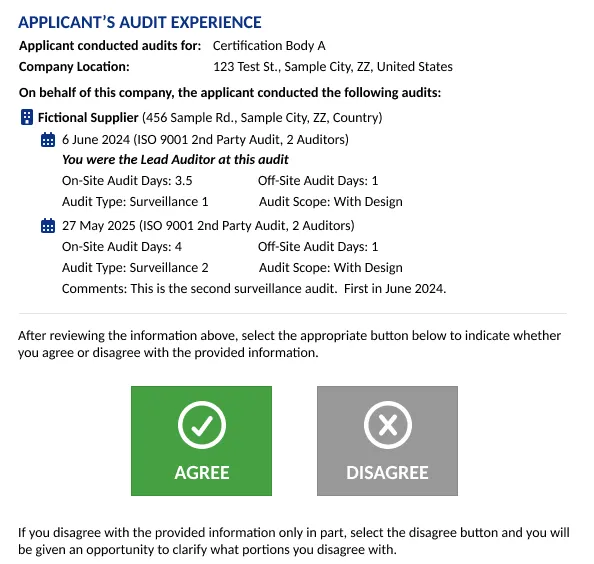
Section titled “Experience for the Provided Contacts”Each contact person listed in the application will receive an email that summarizes the relevant portions of work
and/or audit experience. If the same contact person was listed in the application multiple times with the same
email address, the system will consolidate all related experience into one email. The email will include prominent
agree/disagree buttons, as shown in the example below:
After clicking either button, the contact will be taken to a website to confirm their response, similar to the example
shown below:
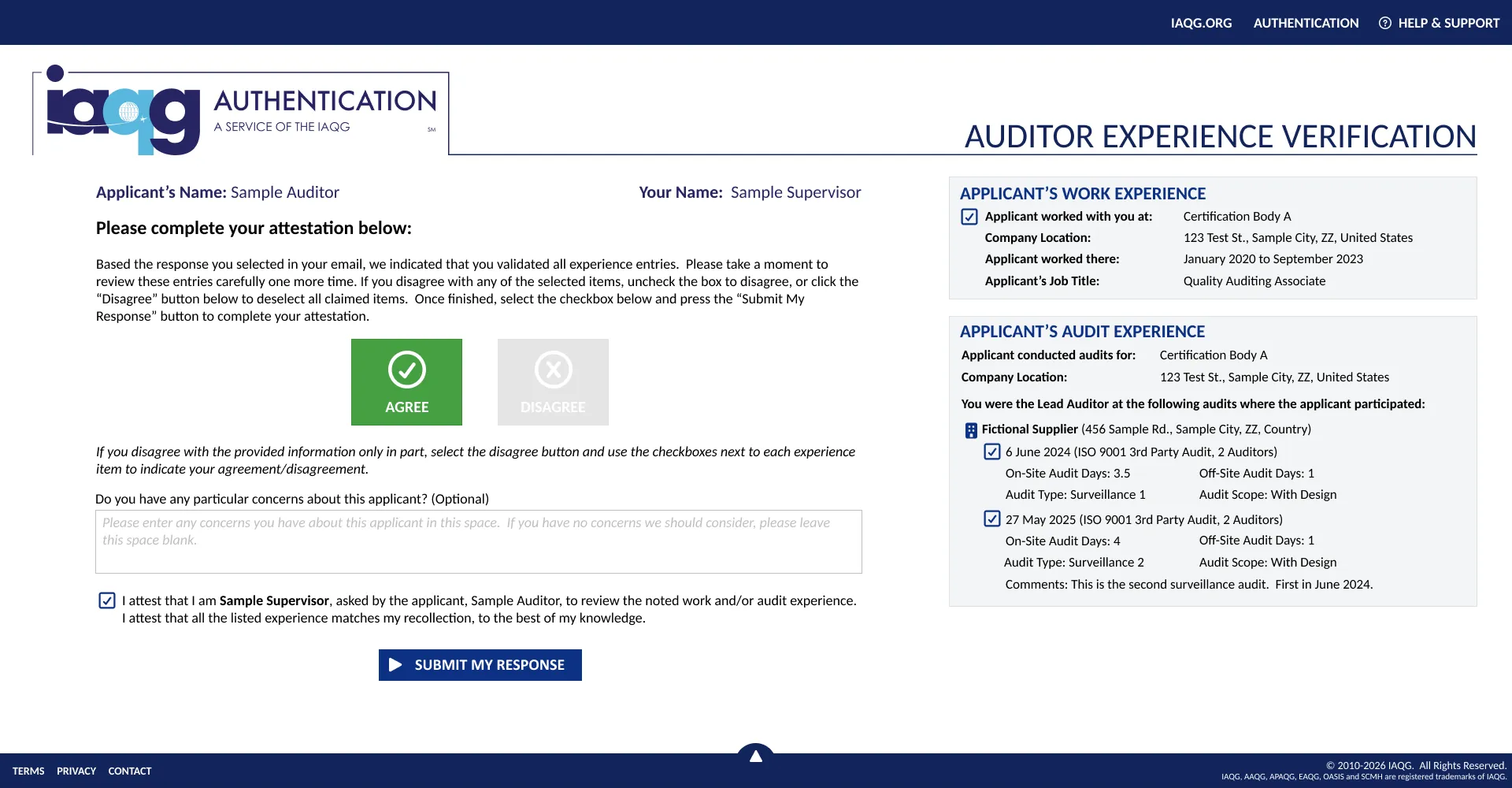
Once the contact has submitted their response (whether agreeing or disagreeing, in whole or in part), the verification process is complete.
For the application to begin processing, all listed contacts must complete the experience verification process.
Available Actions for Applicants
Section titled “Available Actions for Applicants”Applicants may access the Contact Verification status page through the Auditor Authentication Status Page. Click the button next to the relevant AQMS standard to be taken to a page similar to that shown below:
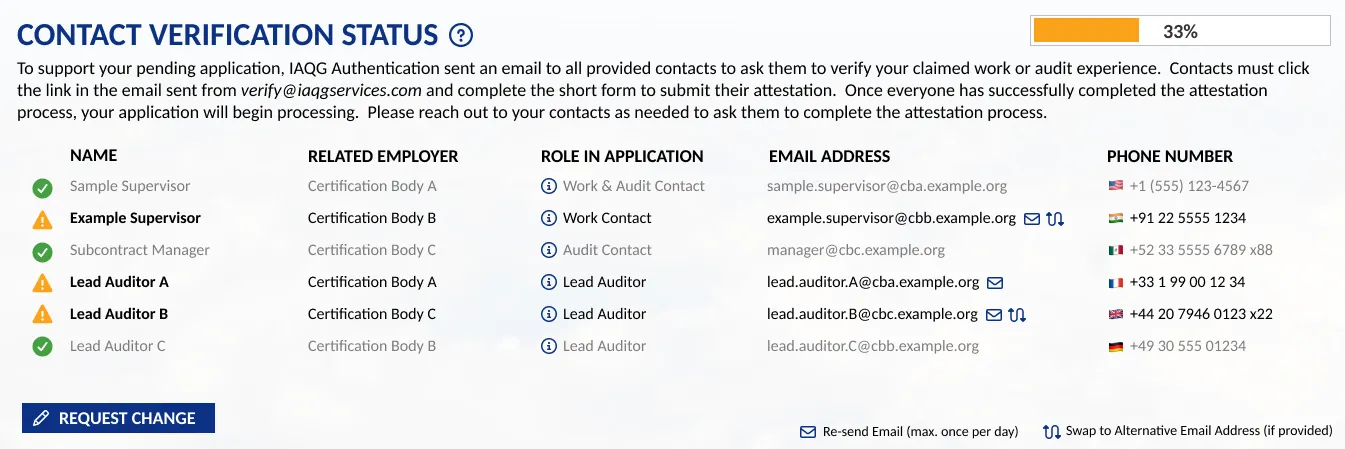
Applicants are responsible for following up with their provided contacts as needed to complete the verification process. To assist, the Contact Status Verification page provides a few options:
Resend Email (max. once per day per email)
Section titled “Resend Email (max. once per day per email)”In cases where contacts may have not received the email notification, applicants may have the email resent to the provided email address up to once per day. Click on the email button next to the email address for the relevant contact to have the email resent.
Swap to Alternative Email
Section titled “Swap to Alternative Email”As part of the application, applicants may provide an Alternative Email for each contact person. Click on the “Swap” button next to the email address to switch to the alternative email, and then use the Resend Email button to send the notification to the provided alternative address.
Request Change
Section titled “Request Change”Applicants may contact the IAQG Training & Authentication Support Team if errors exist in one or more of the provided email addresses, or to request modification to application details. Click the “Request Change” button to access the Support Ticket form and send a request.